
 ~/apps/unifi-camera-popup · macOS app
Your UniFi cameras as a popup on your Mac.
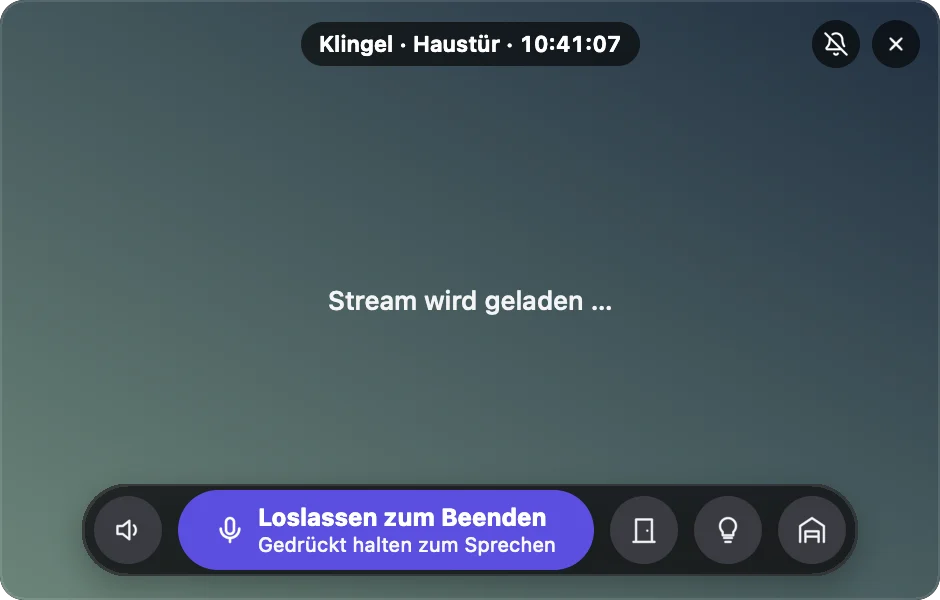
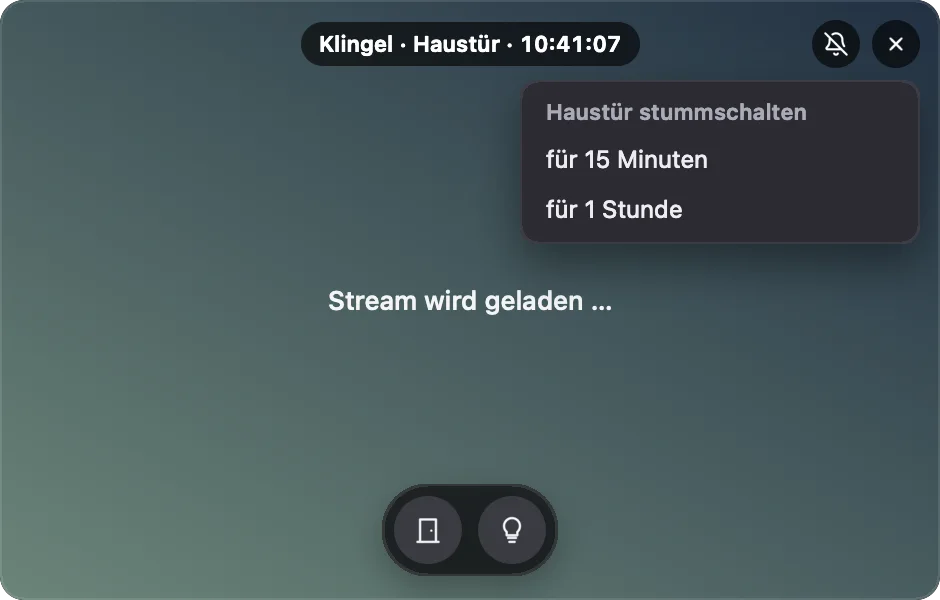
When someone rings the doorbell or a UniFi Protect camera spots a person, UniFi Camera Popup instantly shows the live view in a small window on your Mac – without pulling you out of your work. And you can talk straight through the camera.
~/why
Direct. Local. Free.
No cloud service
The app talks directly to your UniFi console – via the Protect API key, with no detour through someone else's servers.
Talk & react
Speak through the camera, play announcements and use custom buttons like “open door” – all straight from the popup.
Free & up to date
Completely free and no account. The app flags new versions and installs them on request – no download needed.
~/features
What the app can do
Live-view popup on events
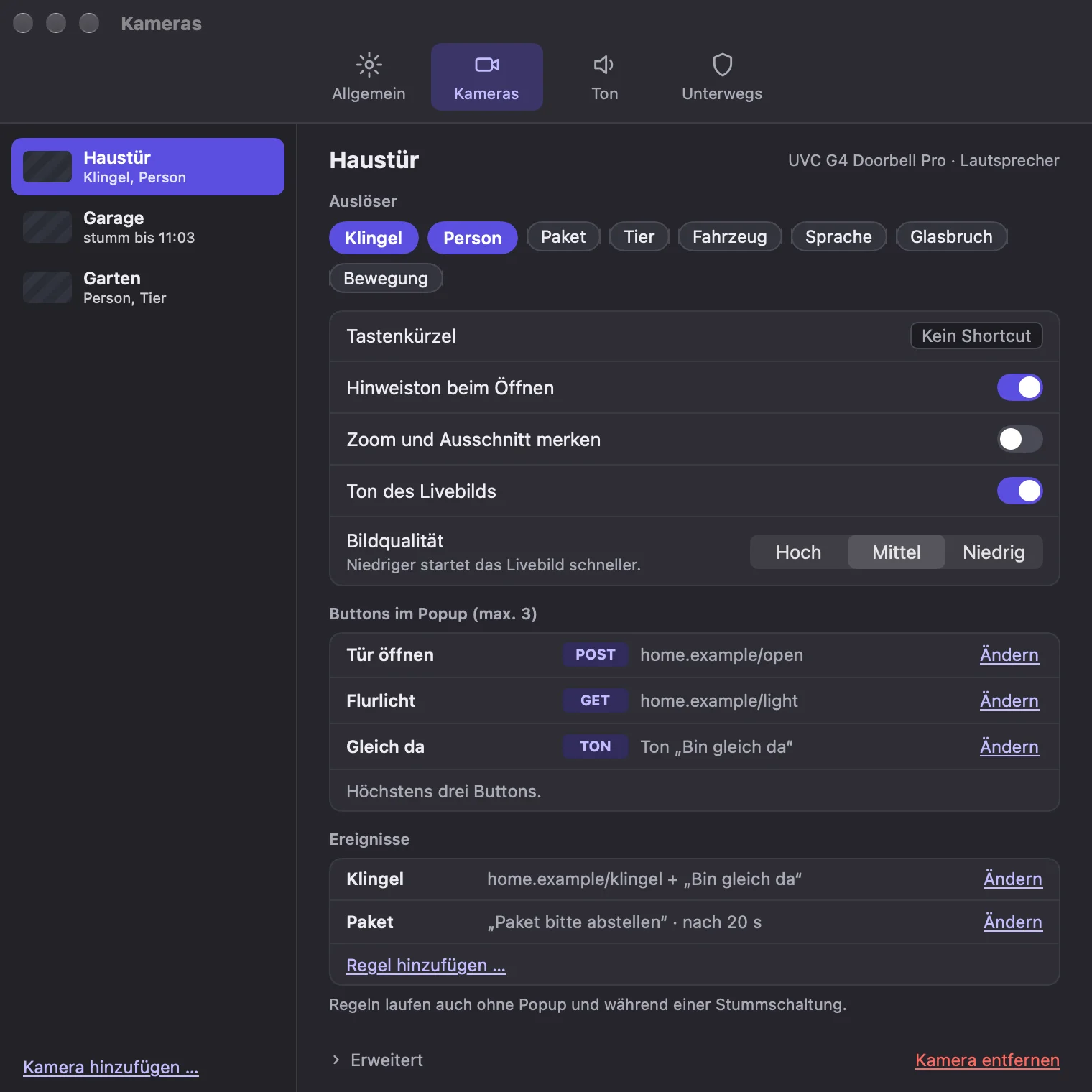
Doorbell ring, person, package, animal, vehicle, speech, glass break or motion – chosen per camera, with zoom and a remembered crop.
Stream quality per camera
High, medium or low per camera – a lower quality starts the live view faster.
Talk & announcements
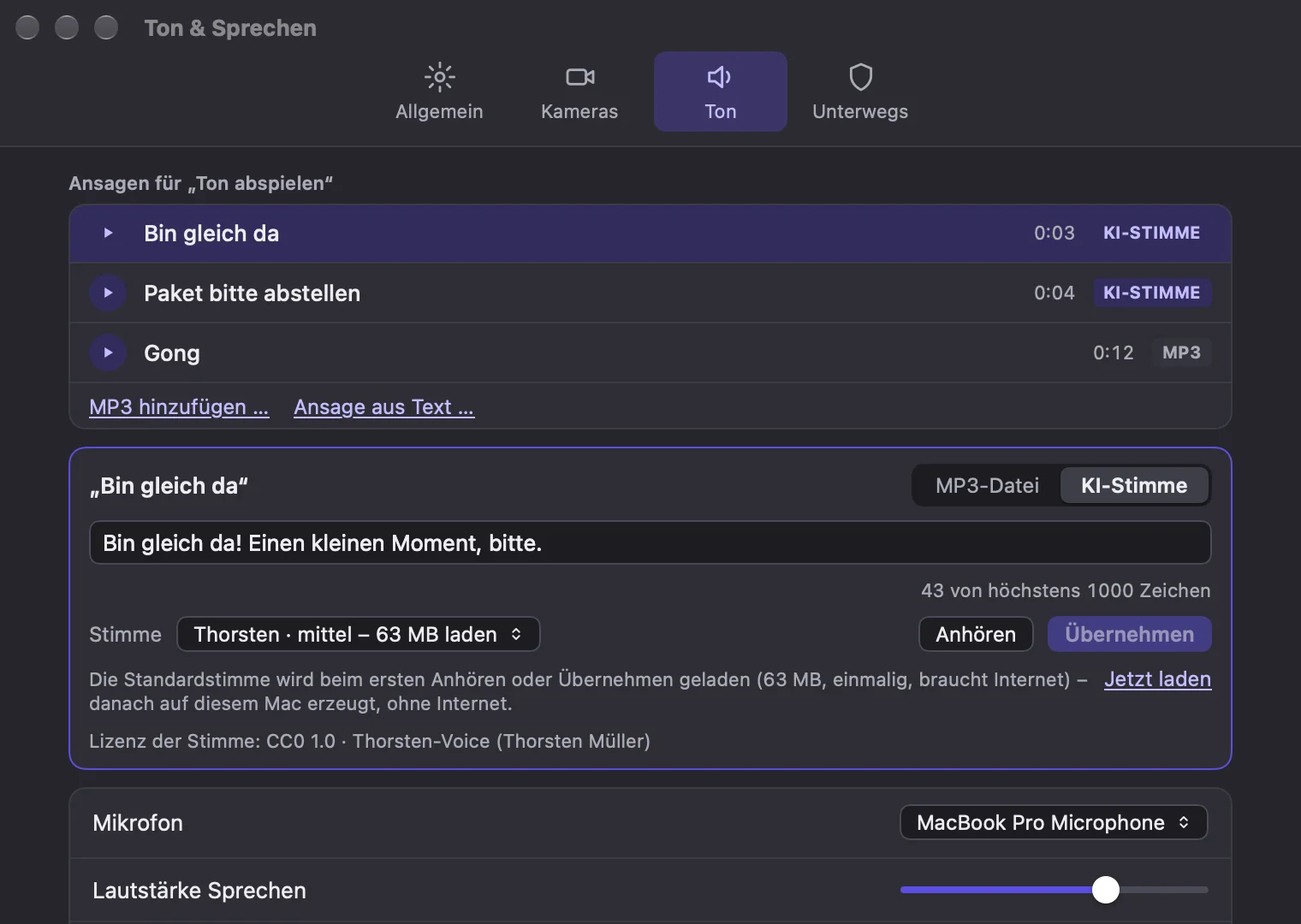
Hold to talk through the camera's speaker. Play announcements from an MP3 or your own text, spoken by natural German voices (Piper) – generated entirely on your Mac.
Custom buttons & rules
Up to three buttons per camera (webhook GET/POST or announcement) and rules that fire a webhook and/or play an announcement on an event, optionally delayed.
On the go via WireGuard
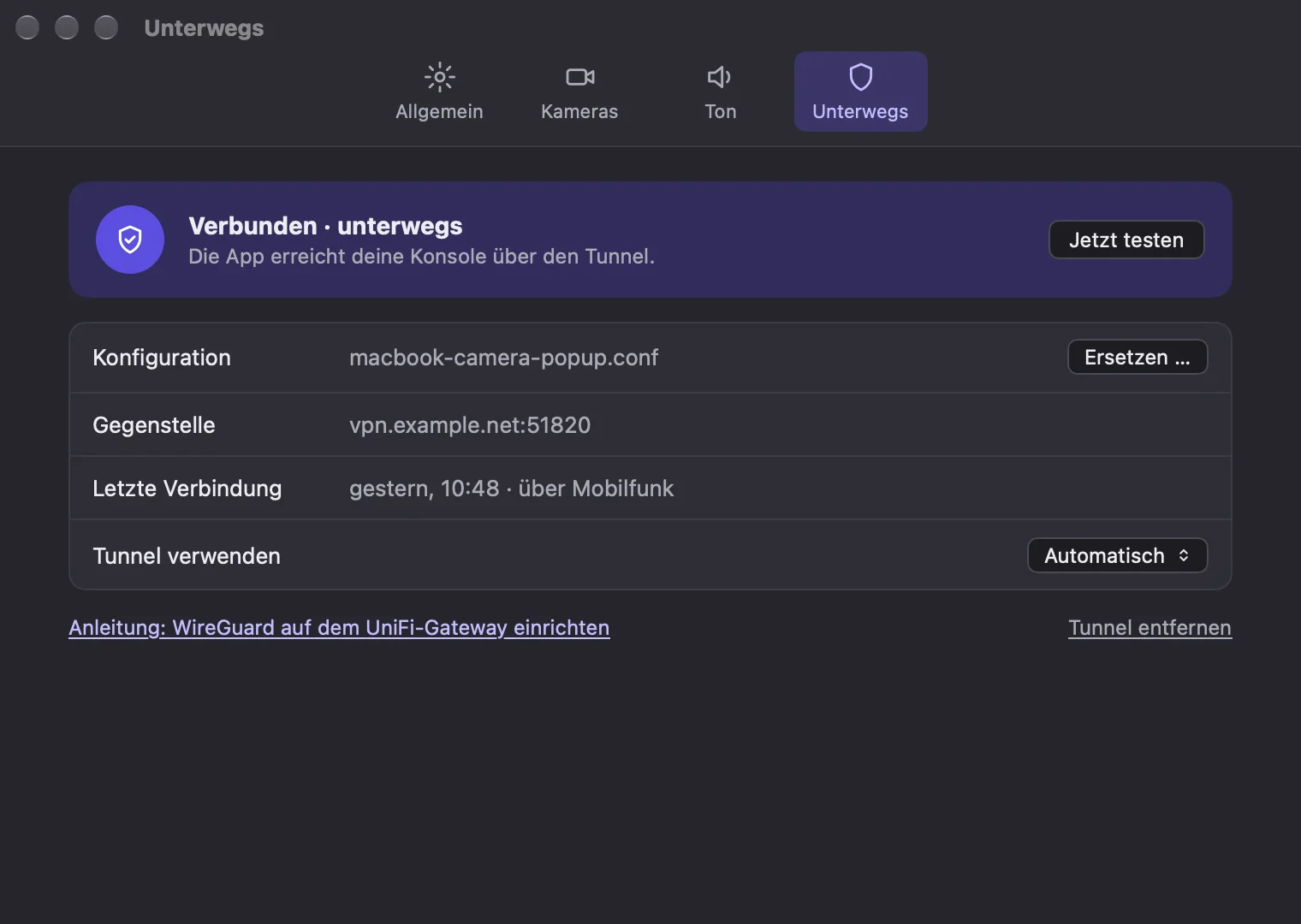
Import the WireGuard file from your UniFi gateway. The app detects whether you're home and only brings up the tunnel when needed – built in, no separate VPN app.
Stays out of your way
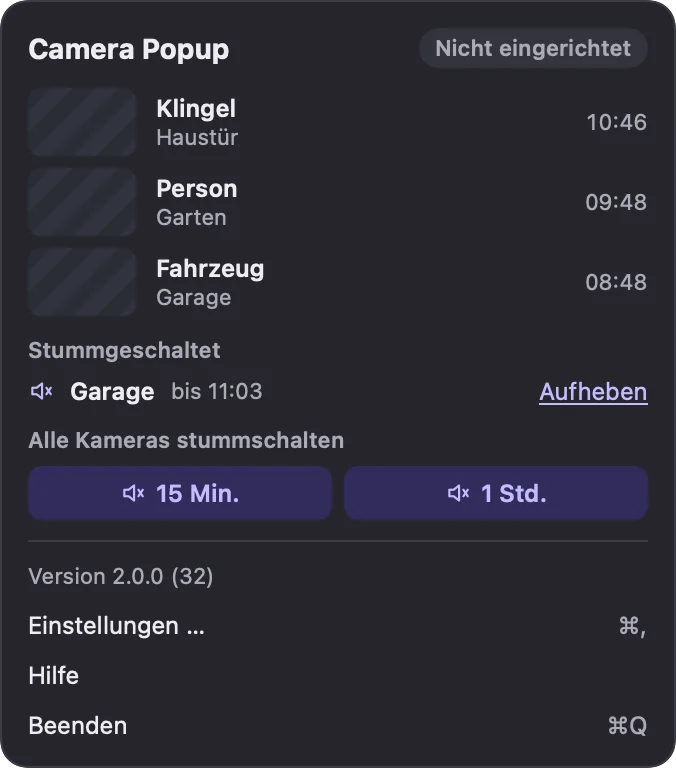
Mute per camera or for all (15 min, 1 h …), respects macOS Focus / Do Not Disturb, a keyboard shortcut per camera, plus light and dark mode.
One-click updates
The app tells you about new versions, shows what's new and installs them for you – no need to download again.
~/a-look
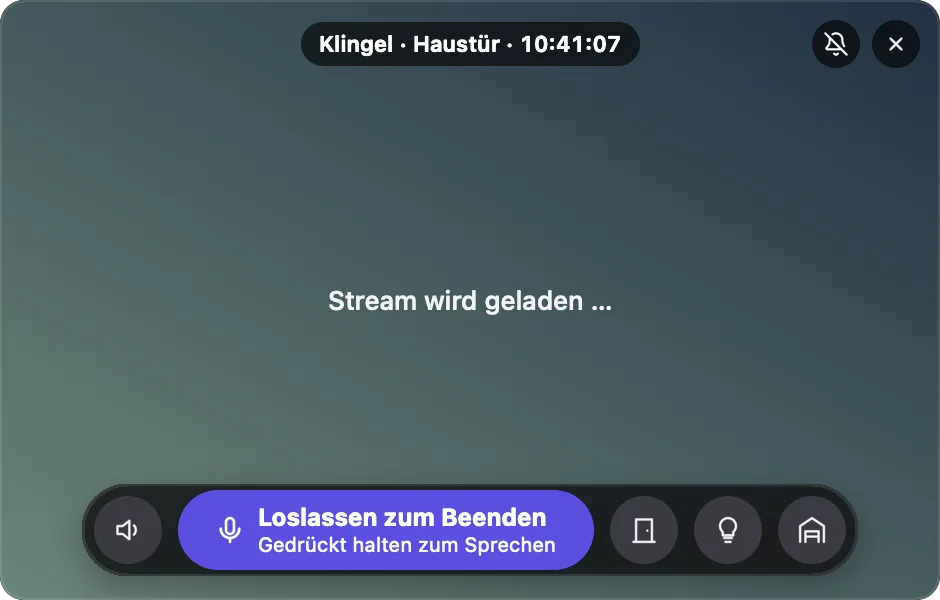
A look inside
~/requirements
What you need
- macOS 13 Ventura or newer – Apple Silicon and Intel Macs (Universal).
- A UniFi console with UniFi Protect (e.g. UDM Pro/SE, UNVR, Cloud Key Gen2+) and an API key for the console. The app walks you through setup on first launch and finds the console on your network itself.
- Talking only works with cameras that have a speaker (e.g. UniFi Doorbells). Voices for text announcements are downloaded once on first use (about 20–115 MB per voice).
- Optional for “on the go”: a WireGuard VPN server on the UniFi gateway.
- App language: German.
~/install
Install
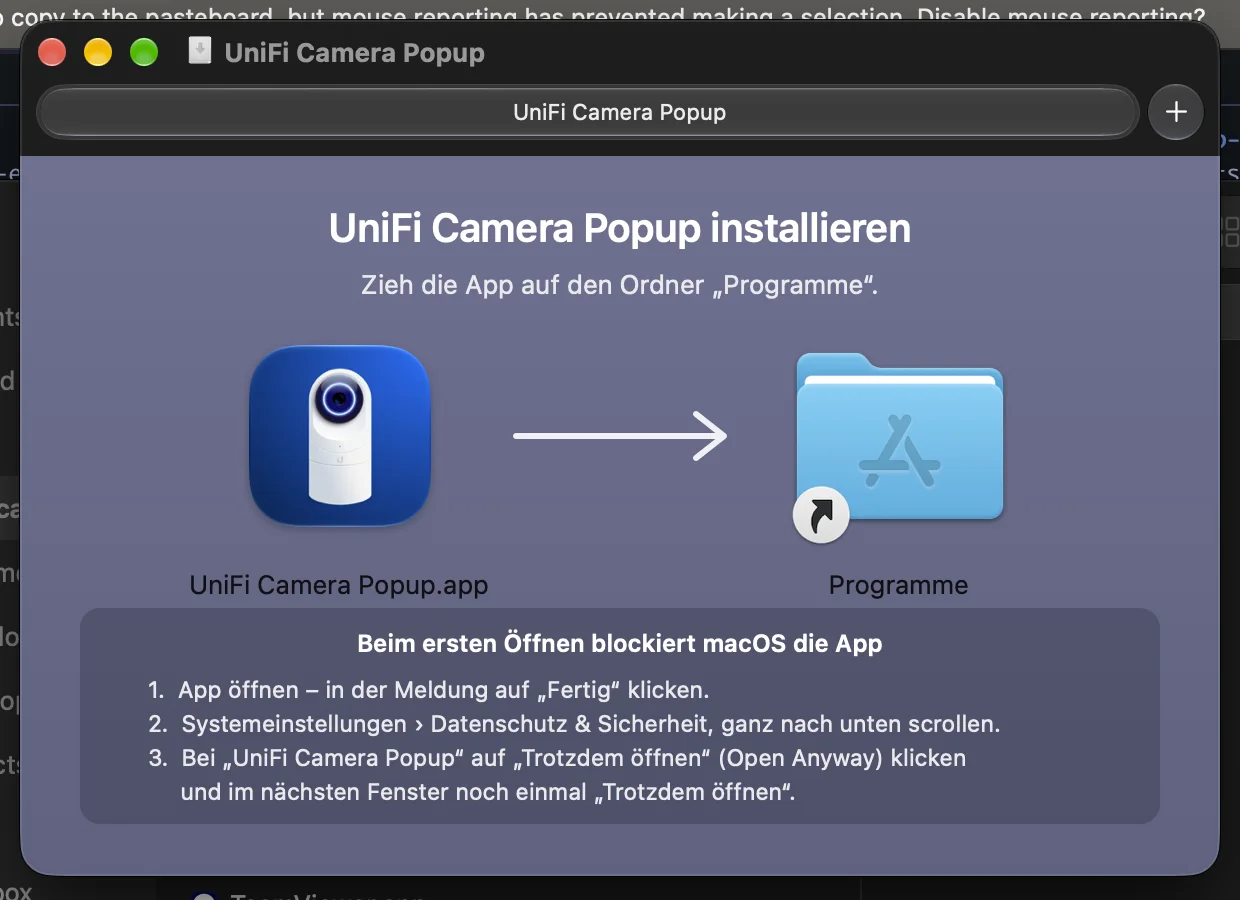
UniFi Camera Popup is not notarized by Apple (that would require a paid Apple developer account). macOS therefore blocks the first launch, and since macOS 15 you approve it once via System Settings. After that the app launches normally – and updates install themselves without asking again.
- 01
Download & open the DMG
Download UniFi-Camera-Popup.dmg and open it with a double-click.
- 02
Drag to “Applications”
In the window, drag the app onto the “Applications” folder.
- 03
Open the app – “Done”
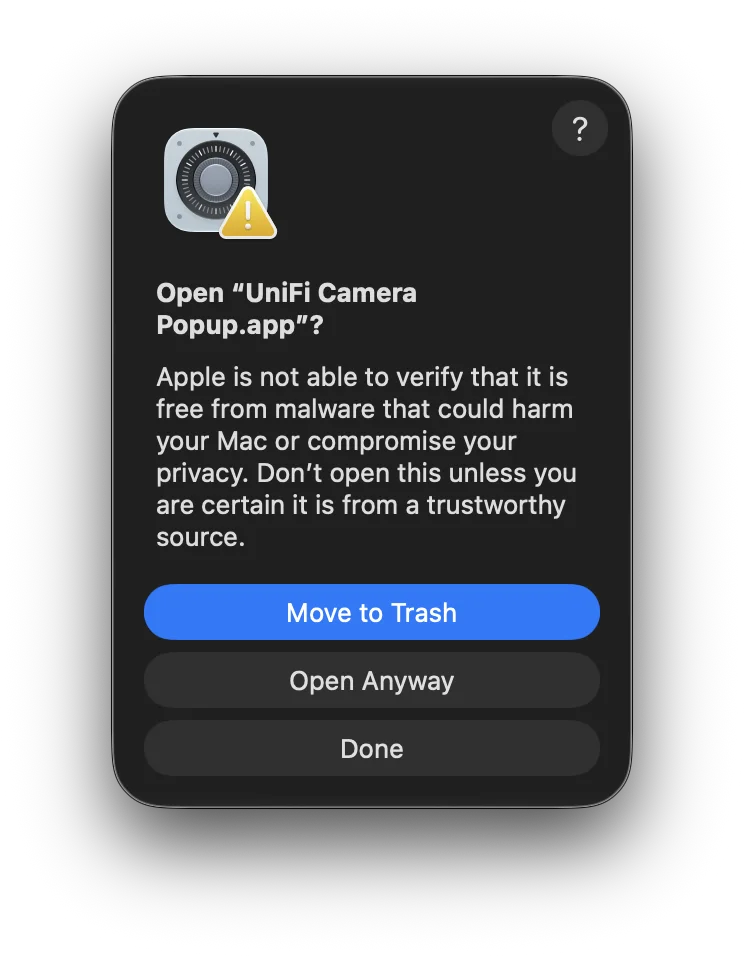
Open the app from “Applications”. macOS says it can't be opened → click “Done” (not “Move to Trash”).
- 04
“Open Anyway” in Settings
Open System Settings › Privacy & Security and scroll to the bottom. It says the app was blocked → click “Open Anyway”.

- 05
Confirm
In the next dialog choose “Open Anyway” again and confirm with your password or Touch ID.
- 06
Set up
The app launches and walks you through setup: find the console, enter the API key, pick your cameras.
For advanced users: via Terminal
Files downloaded through the Terminal don't get the quarantine flag – so the System Settings step is skipped. The command replaces an existing installation; your settings are kept:
curl -fsSL https://unifi-protect-camera-popup-server.snackbits.dev/app.zip -o /tmp/unifi-camera-popup.zip \
  && rm -rf "/Applications/UniFi Camera Popup.app" \
  && ditto -x -k /tmp/unifi-camera-popup.zip /Applications \
  && rm /tmp/unifi-camera-popup.zip \
  && open "/Applications/UniFi Camera Popup.app"
// app.zip is the same app as in the DMG and is signed for the auto-updates.
Get UniFi Camera Popup
For macOS 13 and newer – as a direct download (always the latest version).
Note: The app is not notarized by Apple, so the System Settings step above is needed on the very first launch. After that – and for every update – it launches without asking.