
 ~/apps/hotkeylock · macOS app
Lock your keyboard and trackpad – with a shortcut.
Cleaning the keyboard, a video for the kids, the cat on your laptop: press ⌃⌥⌘L and your MacBook ignores every input – no keys, no clicks, no swipes. The same shortcut unlocks it again. Unlike the lock screen, everything stays visible and keeps running.
~/why
One shortcut. Total quiet. Free.
Lock without logging out
The screen stays on, videos and music keep playing – only the keyboard and trackpad stop responding until you press the shortcut again.
With a safety net
Forgot the shortcut? HotkeyLock unlocks by itself after 30 minutes (adjustable). And quitting the app gives you every input back at once.
Free & no cloud
No account, no ads, no data. Your input stays on your Mac – and the app installs new versions on request.
~/features
What it does
One shortcut for both
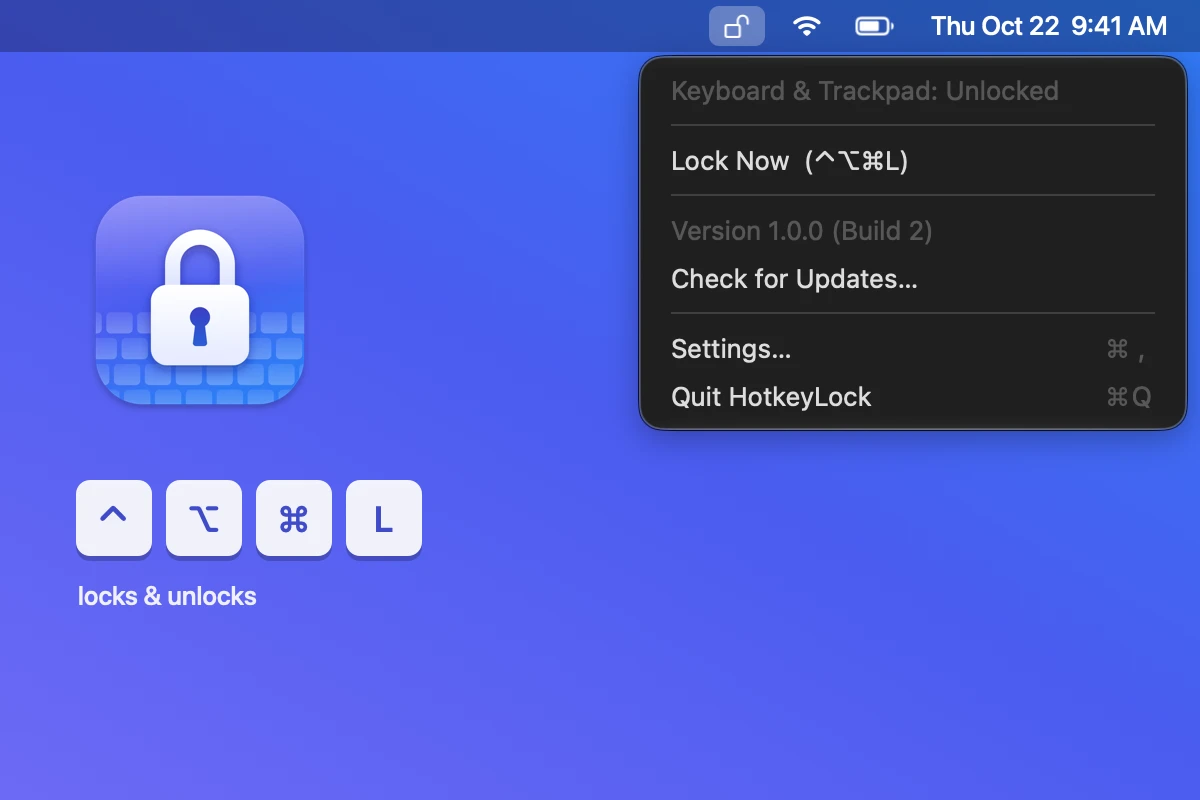
⌃⌥⌘L locks, the same shortcut unlocks. While locked, only this shortcut gets through.
Really everything is locked
Keys, clicks, pointer, scrolling and gestures – including the volume, brightness and media keys.
Your own shortcut
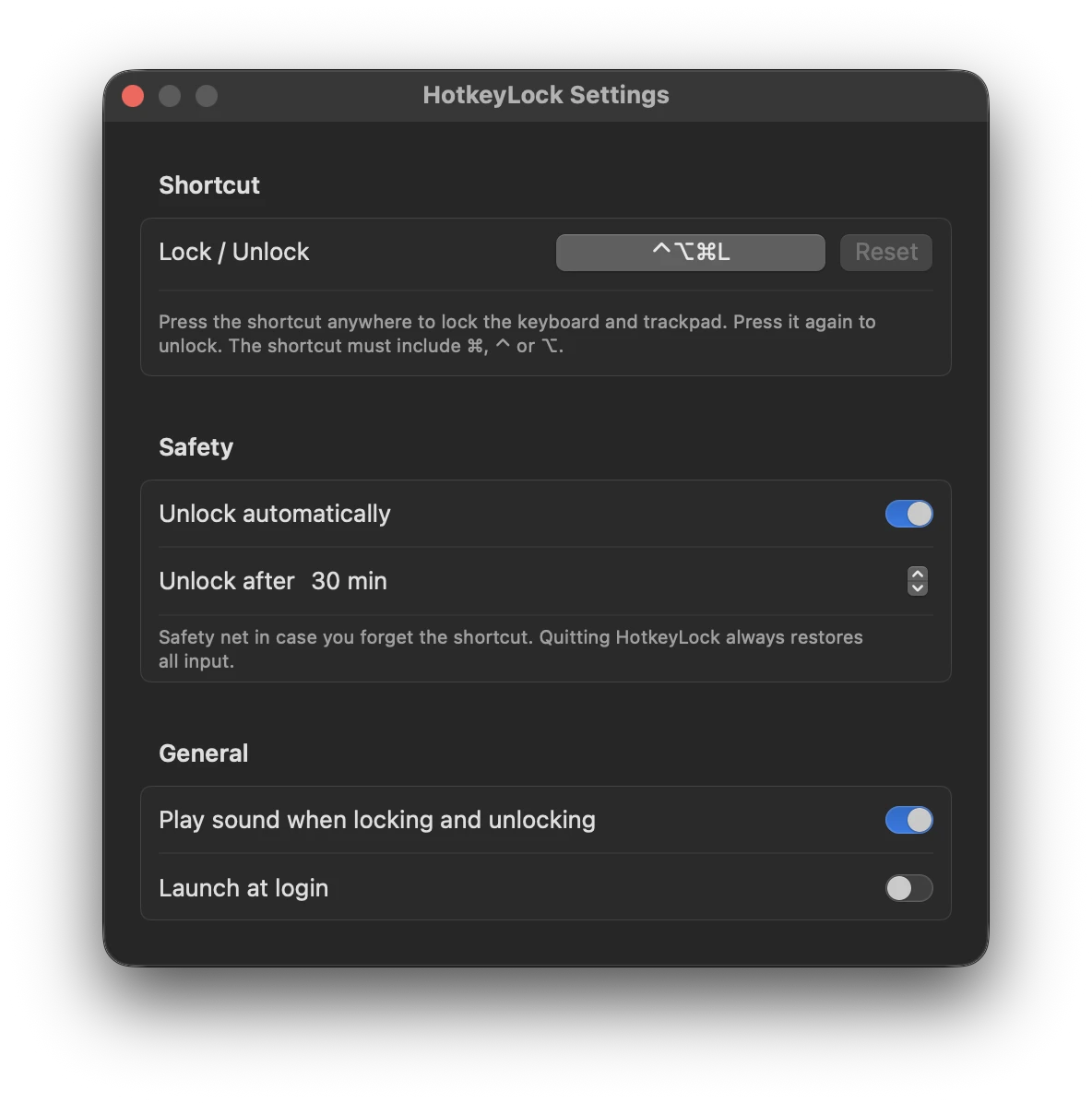
Click the shortcut in Settings and press a new combination. It must include ⌘, ⌃ or ⌥ so normal typing never locks.
Auto-unlock
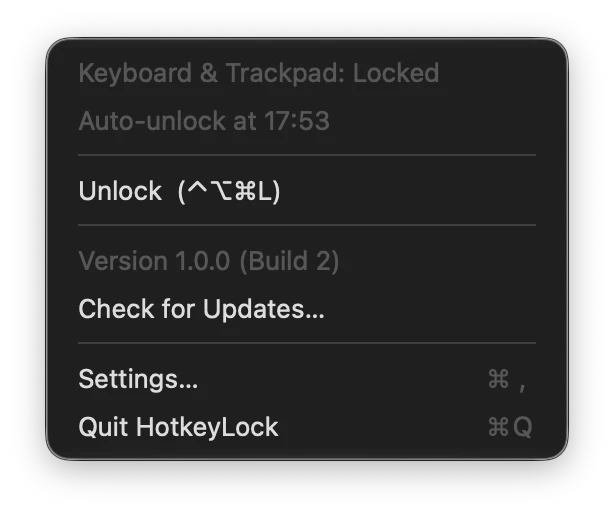
After 1 to 240 minutes, 30 by default. The menu shows when the lock ends.
Emergency exit
Quitting HotkeyLock releases every input immediately – even via SSH with killall HotkeyLock.
A padlock in the menu bar
Open or closed: the icon shows the state at a glance. No Dock icon, no window in the way.
Sound feedback
A short sound when locking and unlocking – can be turned off.
Starts with your Mac
Optionally at login, so the shortcut is always ready.
English & German
HotkeyLock follows your macOS language.
One-click updates
The app tells you about new versions, shows what’s new, and installs them on request. Updates are signed and verified before they are installed; the Accessibility permission is kept.
~/look
How it looks
~/requirements
What you need
- macOS 13 Ventura or later – Apple silicon and Intel Macs (Universal).
- The Accessibility permission in System Settings. Without it no app can intercept input; HotkeyLock asks for it on first launch.
- Every keyboard and mouse is locked, including external ones – macOS doesn’t reliably tell which device an input comes from. The power button and Touch ID can’t be locked.
- App language: English and German – HotkeyLock follows your macOS language.
~/install
Install
HotkeyLock is not notarized by Apple (that would require a paid Apple developer account). macOS therefore blocks the first launch, and since macOS 15 you can only allow it once in System Settings. After that the app starts normally – and it installs updates by itself without asking again.
- 01
Download & open the DMG
Download HotkeyLock.dmg and double-click it.
- 02
Drag to “Applications”
Drag HotkeyLock onto the Applications folder in the window.
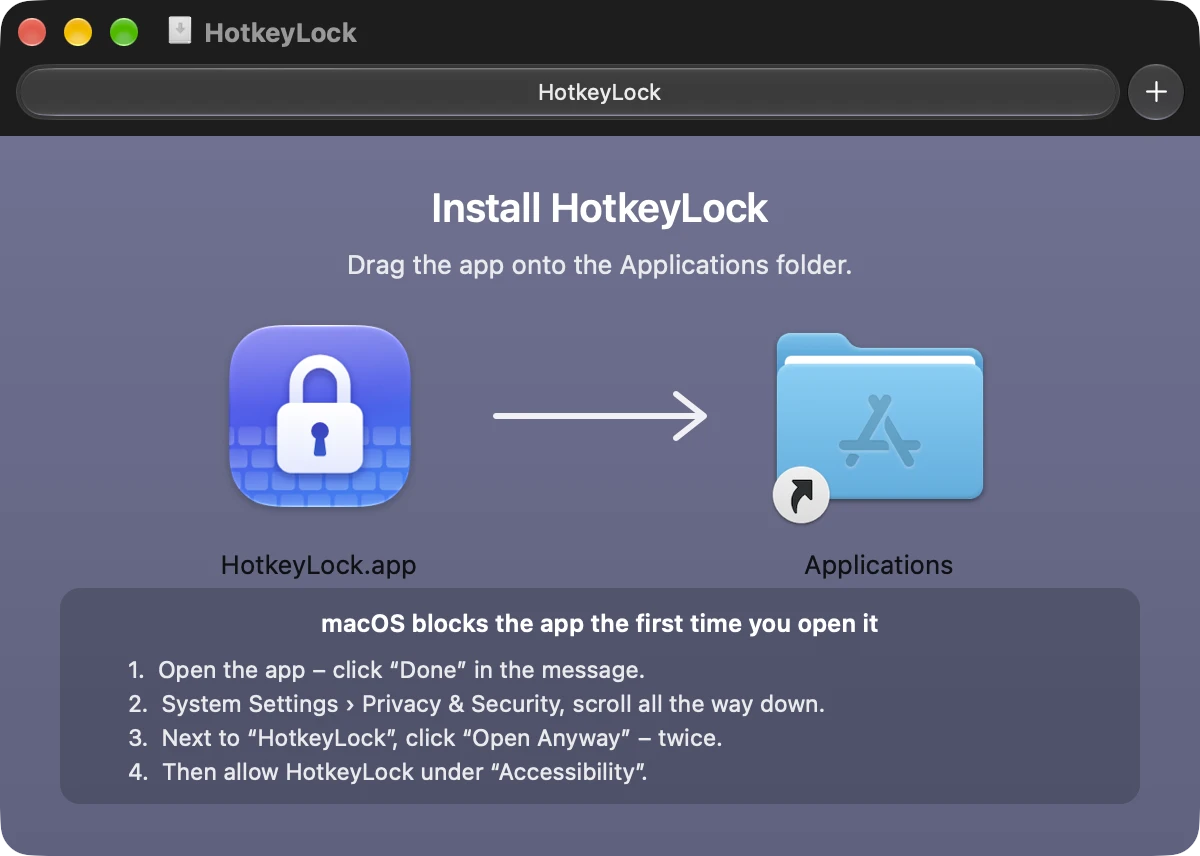
- 03
Open the app – “Done”
Open HotkeyLock from Applications. macOS says it can’t be opened → click “Done” (not “Move to Trash”).
- 04
“Open Anyway” in System Settings
Open System Settings › Privacy & Security and scroll all the way down. It says HotkeyLock was blocked → click “Open Anyway”.
- 05
Confirm
Choose “Open Anyway” once more in the next window and confirm with your password or Touch ID.
?Open “HotkeyLock.app”?
Apple is not able to verify that it is free from malware that could harm your Mac or compromise your privacy. Don’t open this unless you are certain it is from a trustworthy source.
Move to TrashOpen AnywayDone - 06
Allow Accessibility
HotkeyLock asks for Accessibility access and opens System Settings › Privacy & Security › Accessibility. Turn HotkeyLock on there – after a few seconds the padlock appears in the menu bar and ⌃⌥⌘L is ready.
For advanced users: via Terminal
Files downloaded in Terminal don’t get a quarantine flag – so steps 03 to 05 aren’t needed; you still have to allow Accessibility once. The command replaces an existing installation; your settings are kept:
curl -fsSL https://snackbits.dev/apps/hotkeylock/app.zip -o /tmp/hotkeylock.zip \
  && rm -rf "/Applications/HotkeyLock.app" \
  && ditto -x -k /tmp/hotkeylock.zip /Applications \
  && rm /tmp/hotkeylock.zip \
  && open "/Applications/HotkeyLock.app"
// app.zip is the same app as in the DMG and is signed for the auto-updates.
Get HotkeyLock
For macOS 13 and later – as a direct download (always the latest version).
Privacy: HotkeyLock only looks at your input to recognize the shortcut and to discard everything else while locked; none of it is stored or sent anywhere. The only connection to snackbits.dev is the update check: shortly after launch and every six hours the app fetches https://snackbits.dev/apps/hotkeylock/version.json. This produces the usual server log data (IP address, time); no content is transmitted.
Note: HotkeyLock is no replacement for the lock screen: anyone holding your Mac can still use the power button. The app is not notarized by Apple, so the System Settings step described above is needed on the very first launch.