
 ~/apps/chatdeck · macOS app
All your messengers in one Mac window.
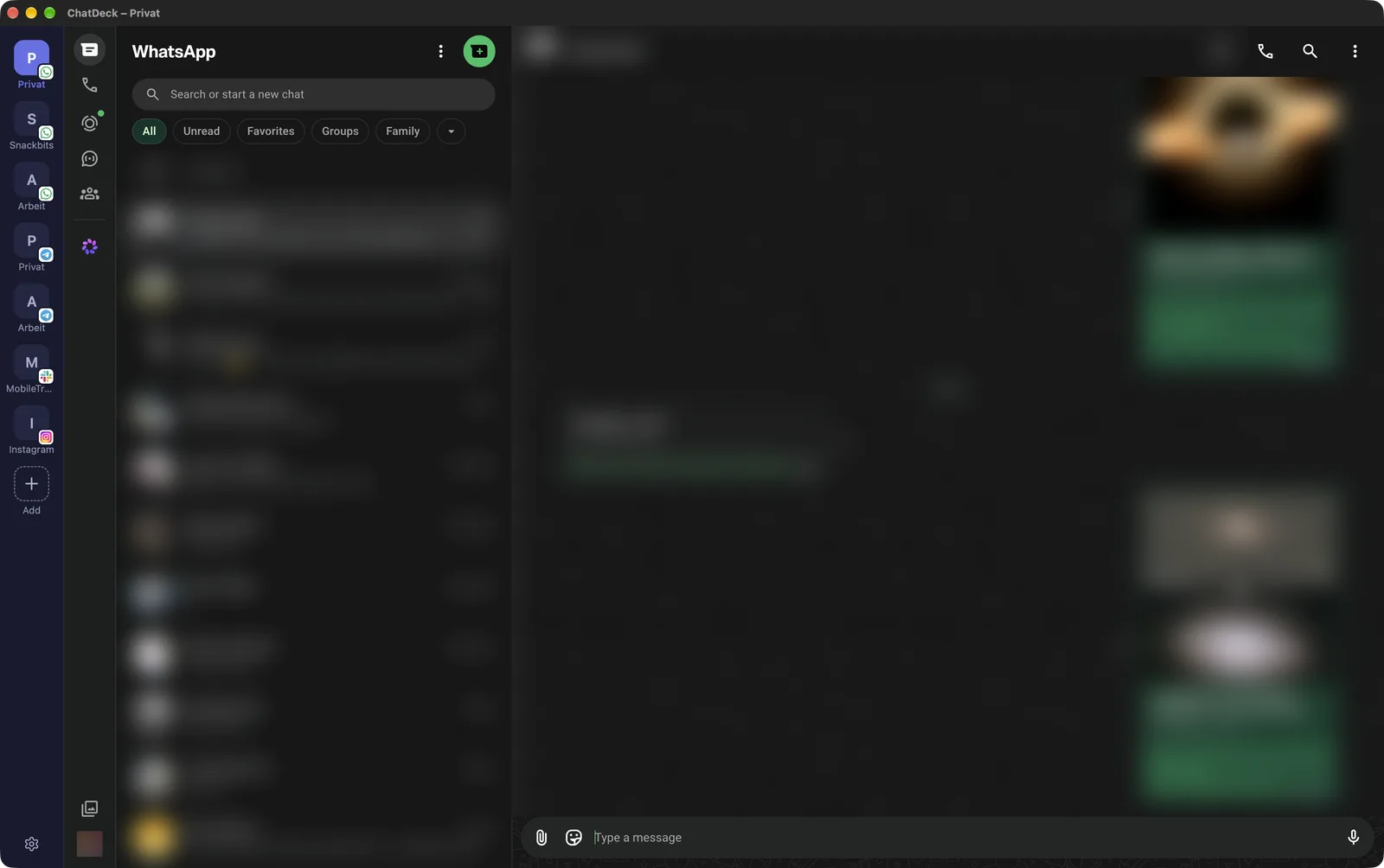
Personal WhatsApp, work WhatsApp, Telegram, Slack and Discord – each in its own browser tab, each with its own login? ChatDeck gathers every messenger and account in one window. One click in the sidebar switches accounts, ⌘-click opens a second one next to it, a counter shows where something new is waiting.
~/why
One window. Every account. Free.
Several accounts per messenger
Three WhatsApp numbers, two Telegram accounts? Each account has its own separate session – no logging out and back in.
No cloud in between
ChatDeck opens the official web versions of the messengers directly. Your messages never pass through a snackbits server.
Free & up to date
Completely free, no account needed. The app tells you about new versions and installs them on request – no new download.
~/features
What it does
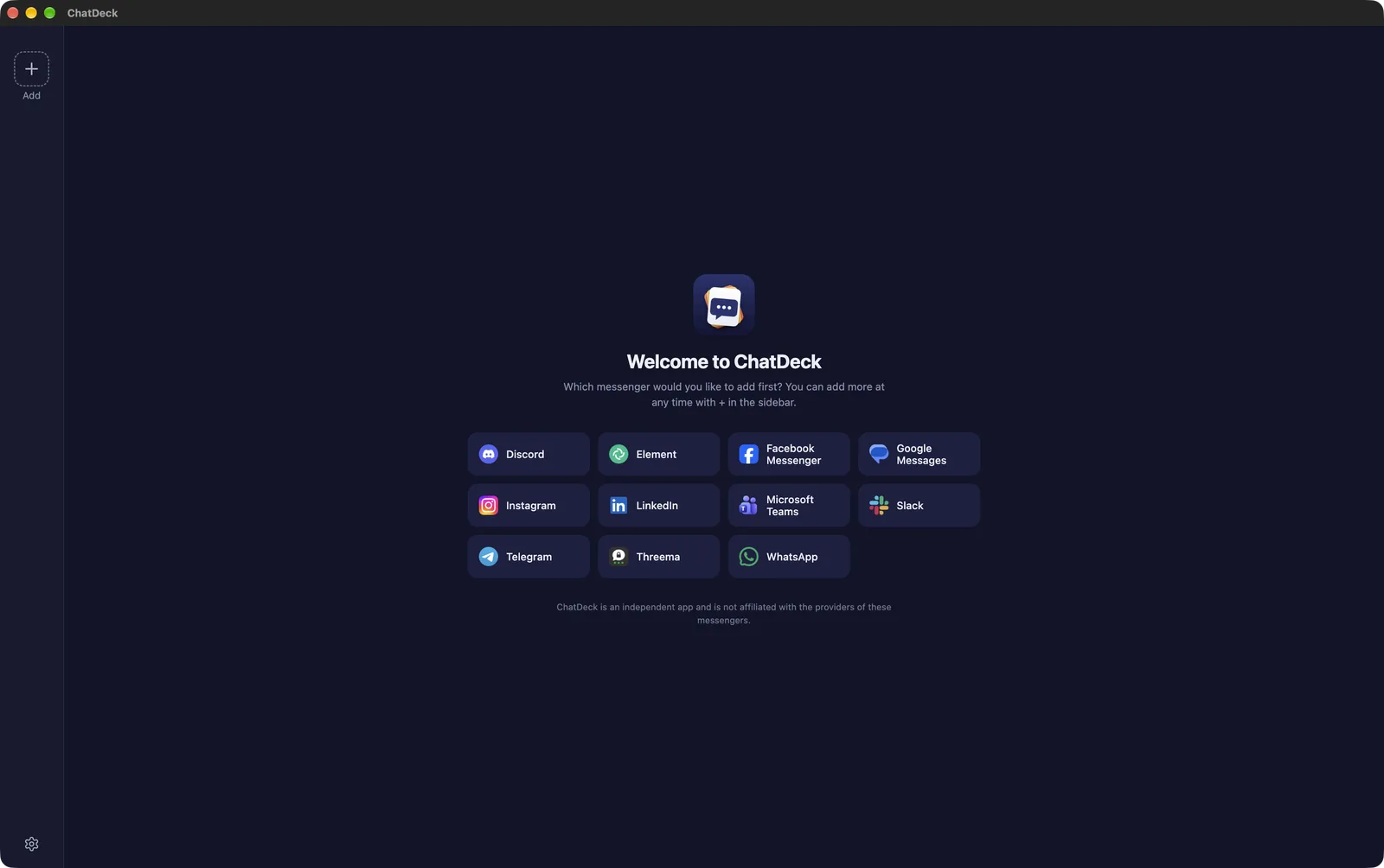
Eleven messengers
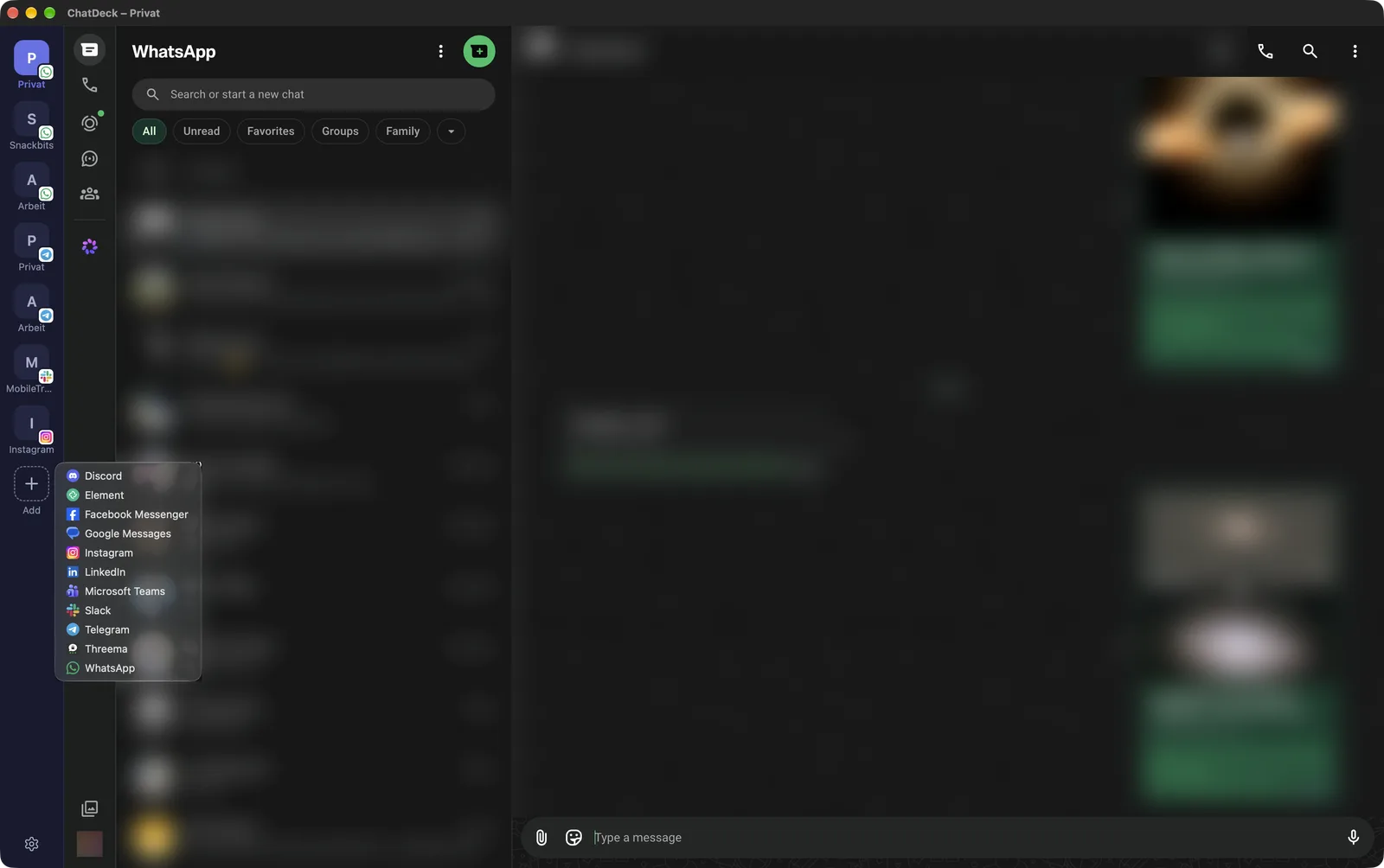
Discord, Element, Facebook Messenger, Google Messages, Instagram, LinkedIn, Microsoft Teams, Slack, Telegram, Threema and WhatsApp.
A sidebar with every account
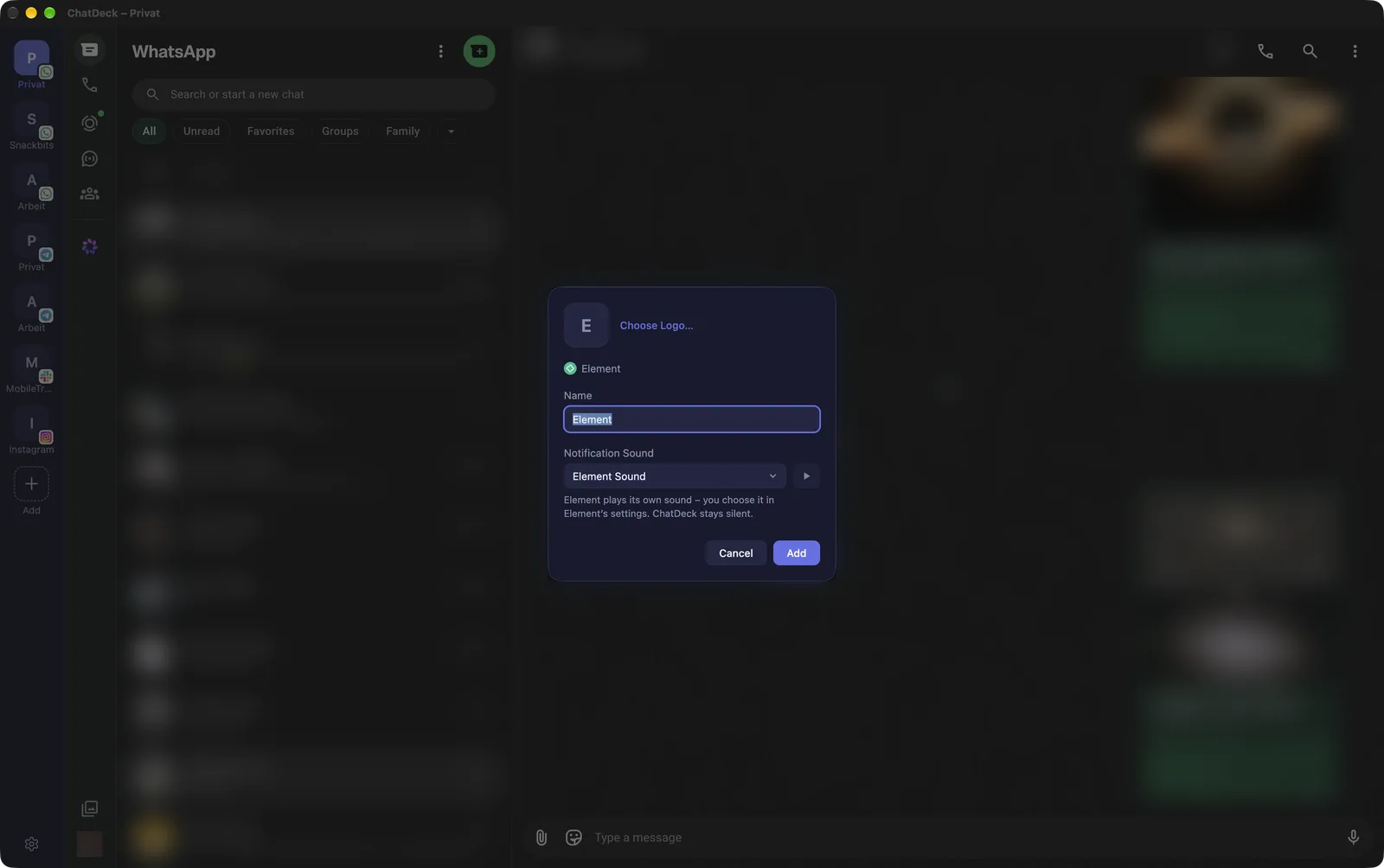
Each account is a tile – showing your account picture large or, if you prefer, its messenger’s logo. Drag to reorder, right-click to edit, reload or remove.
Two accounts side by side
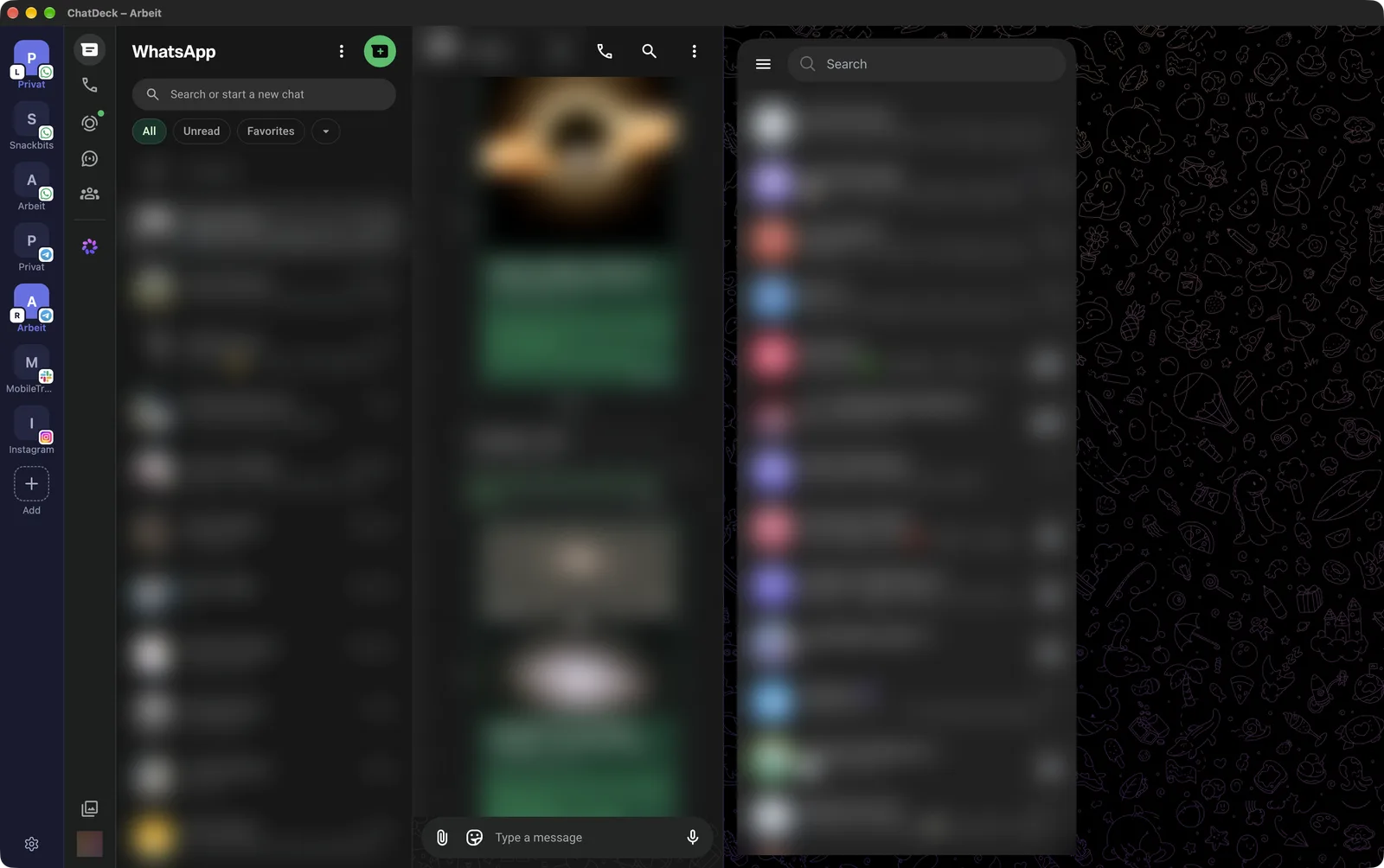
Personal on the left, work on the right: ⌘-click an account in the sidebar to open it next to the current one. “L” and “R” on the tiles show which is where. A normal click shows a single account again.
Unread messages at a glance
A counter on every tile and the total in the Dock. (Where the messenger provides a number – Slack and Discord sometimes only show a dot.)
Mute any account
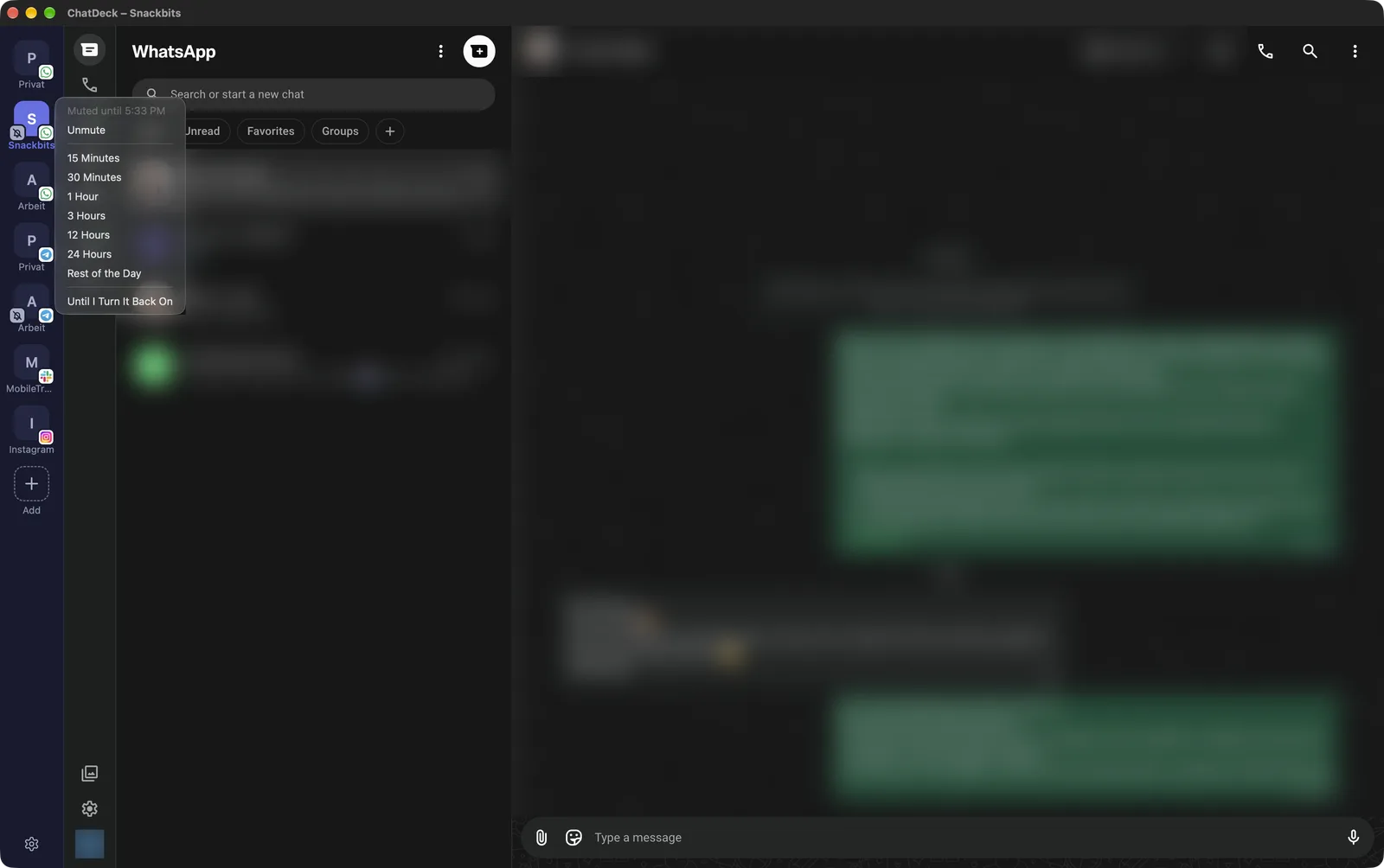
Done with work for the day? Right-click → “Mute”: for 15 minutes up to 24 hours, the rest of the day, or until you turn it back on. No sounds, no notifications – and the account speaks up again on its own.
Notifications with your own sound
Every account sounds the way you want: with the messenger’s own sound, a macOS system sound or a file of your own. Clicking a notification opens the right account – for WhatsApp, Telegram and others, right in the matching chat.
⌘1 to ⌘9
The first nine accounts by keyboard shortcut, in sidebar order.
Your own names and logos
“Personal”, “Work”, “Club”: give every account the name and, if you like, the logo you want.
~/look
How it looks
~/requirements
What you need
- macOS 12 Monterey or later – Apple silicon and Intel Macs (Universal).
- An account with each messenger. WhatsApp, Telegram and Threema need a phone running the messenger – you sign in with a QR code, just like the web version.
- Google Messages requires signing in with your Google account. Google sometimes blocks this sign-in in apps like ChatDeck (“Couldn’t sign you in”) – in that case Google Messages can’t be used in ChatDeck at the moment.
- Signal and iMessage are not supported: neither has a web version.
- App language: English and German – ChatDeck follows your macOS language.
~/install
Install
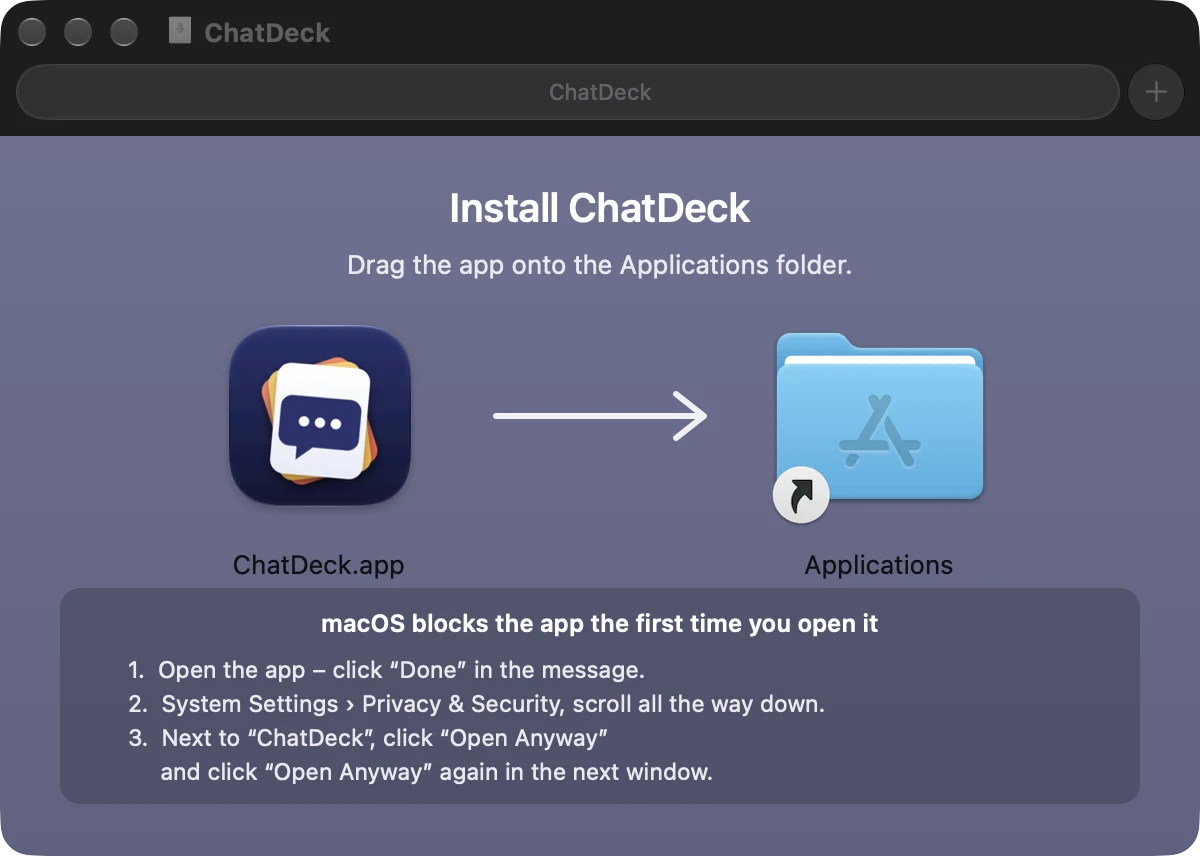
ChatDeck is not notarized by Apple (that would require a paid Apple developer account). macOS therefore blocks the first launch, and since macOS 15 you can only allow it once in System Settings. After that the app starts normally – and it installs updates by itself without asking again.
- 01
Download & open the DMG
Download ChatDeck.dmg and double-click it.
- 02
Drag to “Applications”
Drag ChatDeck onto the Applications folder in the window.
- 03
Open the app – “Done”
Open ChatDeck from Applications. macOS says it can’t be opened → click “Done” (not “Move to Trash”).
- 04
“Open Anyway” in System Settings
Open System Settings › Privacy & Security and scroll all the way down. It says ChatDeck was blocked → click “Open Anyway”.
- 05
Confirm
Choose “Open Anyway” once more in the next window and confirm with your password or Touch ID.
?Open “ChatDeck.app”?
Apple is not able to verify that it is free from malware that could harm your Mac or compromise your privacy. Don’t open this unless you are certain it is from a trustworthy source.
Move to TrashOpen AnywayDone - 06
Add your first messenger
ChatDeck starts with a choice of all messengers. Pick one and sign in – add more any time with the plus in the sidebar.
For advanced users: via Terminal
Files downloaded in Terminal don’t get a quarantine flag – so the System Settings step isn’t needed. The command replaces an existing installation; your accounts and logins are kept:
curl -fsSL https://snackbits.dev/apps/chatdeck/app.zip -o /tmp/chatdeck.zip \
  && rm -rf "/Applications/ChatDeck.app" \
  && ditto -x -k /tmp/chatdeck.zip /Applications \
  && rm /tmp/chatdeck.zip \
  && open "/Applications/ChatDeck.app"
// app.zip is the same app as in the DMG and is signed for the auto-updates.
Get ChatDeck
For macOS 12 and later – as a direct download (always the latest version).
Privacy: ChatDeck loads the messengers’ web versions directly from their servers; messages, contacts and logins stay on your Mac and with each provider. The only connection to snackbits.dev is the update check: at launch and every six hours the app fetches https://snackbits.dev/apps/chatdeck/version.json. This produces the usual server log data (IP address, time); no content is transmitted.
Note: ChatDeck is an independent app and is not affiliated with WhatsApp, Meta, Telegram or any of the other providers. All names are trademarks of their respective owners. The app is not notarized by Apple, so the System Settings step described above is needed on the very first launch.